Help content Support
ONVIF authorization error
For example, you set username and password in the PC-CCTV program and enter the username and password in the NVR, but NVR still gives authorization error message.
For correct ONVIF authorization it is necessary that UTC-time parameter which is set for the camera/PC-CCTV and UTC-time which is set for the NVR were not significantly different, the values of the parameters shouldn't differ for more than two minutes.
Usually, at the beginning of the dialoge with ONVIF camera, NVR requests UTC-time from camera (this operation does not require authorization), and later sends ONVIF requests to the camera using the time. Therefore, even if different values of UTC-time set for NVR and camera, the authentication process will be successful.
However some NVR's manufacturers do not implement this algorithm and the NVR operates using its "own time". If the UTC-time set for camera ( PC-CCTV program) is significantly different from time set for the NVR, the authentication error occurs.
To avoid this error, you need to set the same UTC-time for the PC-CCTV program and for NVR.
Solution:
- Setup your NVR - make sure that NVR receives UTC-time from the NTP-server (any NTP-server).
- Check that your OS Windows also receives time from NTP-server (any NTP-server).
- Open Section "System" in the PC-CCTV program and set option "Program uses its own internal time".
- Check if the button "Set internal time to value of Windows time" available, that means that time of PC-CCTV program and Windows time are different - press the button.
- Now the value of PC-CCTV's UTC-time matches with Windows UTC-time and should match with NVR's UTC-time. You shouldn't have the authentication error anymore.
- The value of PC-CCTV's UTC-time program is displayed as "Current program UTC time".
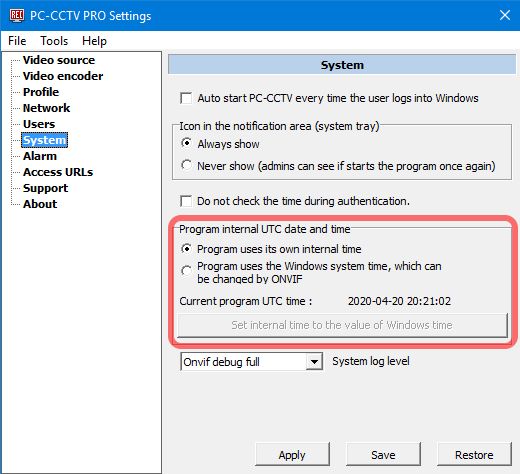
Button "Set internal time to value of Windows time" available only if program's UTC-time is different from the UTC-time Windows.
Attention: Windows displays local time which can differ from the UTC-time for a few hours - accordingly your time zone. The time zone which is set in Windows and set for NVR should be the same, however there shouldn't be a problem if you have different time zones set for computer and NVR. It's important to set NVR and Windows computer to receive time from NTP-servers!
If you still see the error.
Open Section "System" and activate "Do not check the time during authentication". During authorization process, the time parameter will no longer be checked. However, theoretically, hackers can now hack authentication. Do not enable this option unless necessary.